



Step 1: Connect Your AirTag to iPhone
Start by removing the plastic tab from the AirTag to power it on. Bring it close to your iPhone and wait for the connection popup to appear. Tap Connect, choose a name for the item (Keys, Wallet, Bag, etc.), and link it with your Apple ID.

Step 2: Confirm It in the Find My App
After pairing, open the Find My app and go to the Items section. Your AirTag should already be listed there. From this screen you can:
Play a sound to locate nearby items
See the last known location on the map
Turn on Lost Mode to recover missing belongings
This makes tracking simple whether you misplaced something at home or left it outside.

Step 3: Use Precision Finding for Exact Location
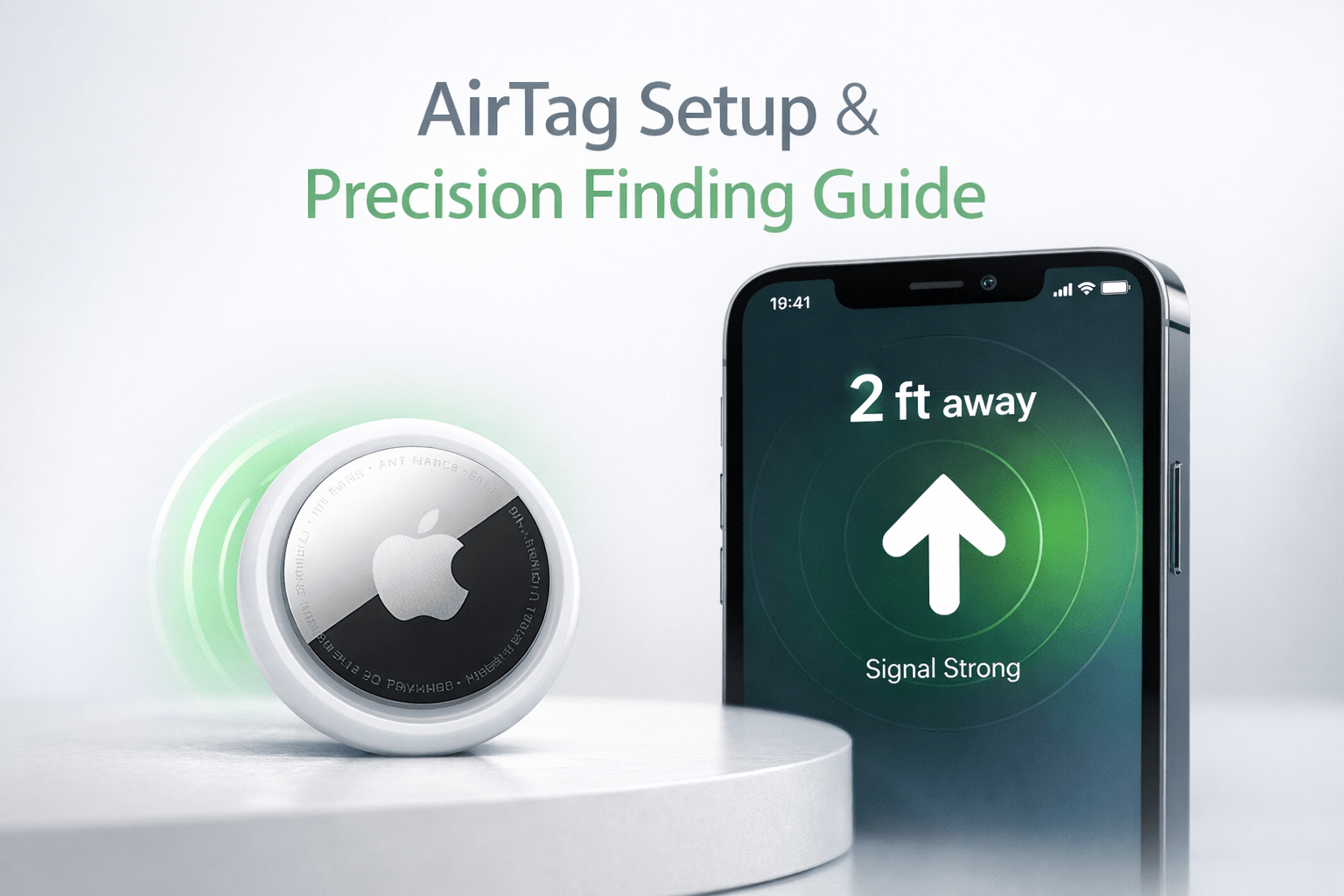
If your iPhone supports Ultra-Wideband tracking, tap Find Nearby. Your phone will show arrows, direction, and distance guiding you to the AirTag in real time. Move slowly while following the on-screen path until you reach the item.
This feature is especially useful for:
Finding keys stuck in sofa cushions
Locating bags in office spaces
Tracking luggage during travel

Step 4: Turn On Smart Alerts
To avoid losing items in the future, enable Notify When Left Behind in settings. Your phone will alert you if you walk away from your AirTag. You can also mark safe places like home so you don’t get unnecessary notifications.
Once these settings are enabled, your AirTag becomes a powerful daily tracking tool that keeps your valuables safe and easy to find.